

Appearance
Card restriction lists
As an Administrator, you can add countries, merchant category codes, and merchant ID restriction groups to the Dashboard that can later be associated to the cards. Groups can be either whitelists or blacklists.
Predef Restriction Groups view
The Predef Restriction Groups Administration view provides 3 tabs:
- MCC Groups – Create and manage lists for specific Merchant Category Codes.
- Country Groups – Create and manage lists for specific countries.
- Merchant Id Groups – Create and manage lists for specific Merchant IDs.
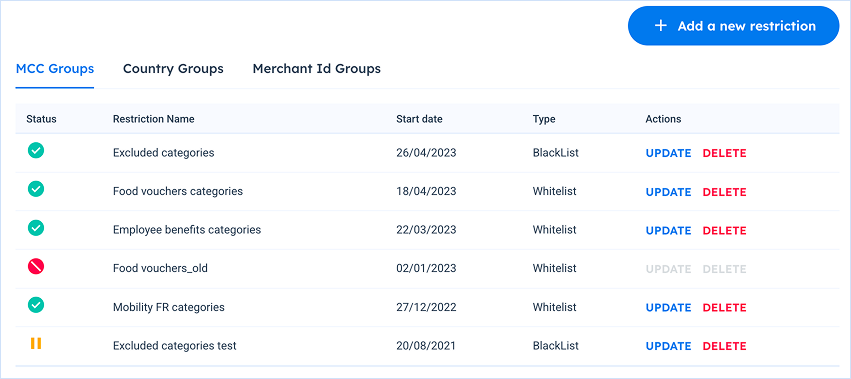
All the tabs are very similar in structure and actions.
Creating restriction groups
You can add as many restriction groups as you need; you must ensure they are clear for your teams to assign to the cards afterwards (see Manage Card restrictions).
To create a restriction group, select the tab for the type of restriction and click on the "Add a new restriction" button in the upper right corner.

Then, in the prompted dialog box, enter the name, start date, and type of restriction.
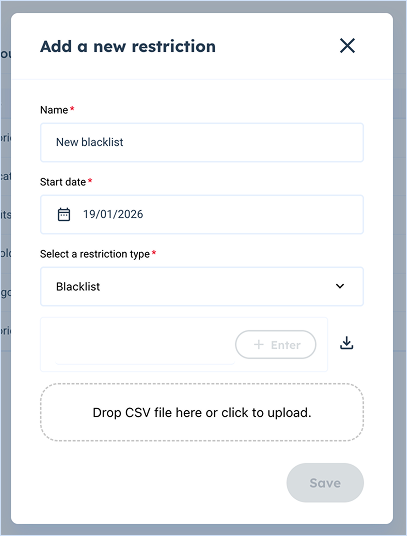
To add elements to the whitelist or blacklist, enter them manually or upload a CSV file.
Managing restriction groups
For any group, click on the update button in the list to open the Update a restriction dialog box, where you can modify all information.
In addition, clicking on the download button allows you to export the list in CSV format. You can then modify the CSV file as you see fit and upload the updated version for easier management of long or complex lists.
Clicking on the "DELETE" command at the end of the table sets the status to "Canceled". This action is irreversible.